Common Issues
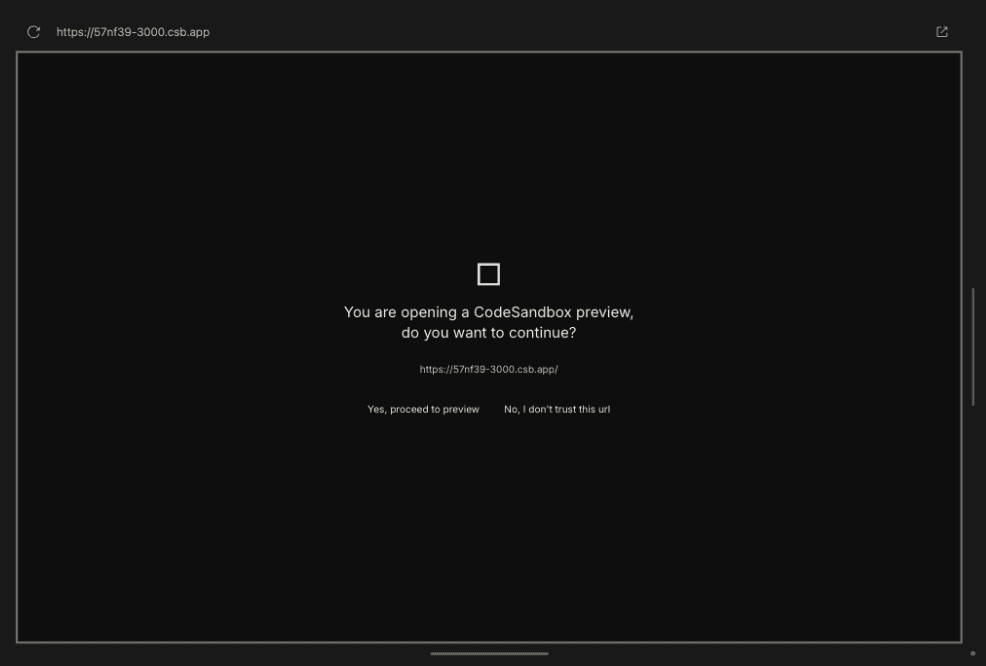
Codesandbox Preview
CodeSandbox may ask you to confirm before rendering a new preview. Weblab now temporarily switches the frame into Preview mode until the sandbox handshake completes, so the confirmation page stays interactive instead of being blocked by the design overlay. If your browser still shows the confirmation page, click Yes, proceed to preview once and the app should load normally after that.

Project Creation Fails With "Unauthorized"
If new project creation fails while Codesandbox reports Unauthorized, verify two things:
CSB_API_KEYis set for the running environment.- New-project flows are pointing at a CodeSandbox template your API token can access.
If either is wrong, sandbox forking can fail before the project record is created.
AI Chat Fails With "Missing Authentication header"
If chat requests fail with Missing Authentication header, verify that OPENROUTER_API_KEY is set in the environment seen by apps/web/client and then fully restart the Next.js server.
In this repo, AI chat is executed server-side, so changing .env.local without restarting leaves the running process with stale environment variables.
Chat Model Selector
The chat composer now includes a model selector powered by OpenRouter. The default model is OpenAI GPT-5.5, and the selector currently exposes the latest supported model from each provider family we route through OpenRouter.
While a chat is streaming, the assistant’s reasoning is shown inline in muted smaller text under the spinner so you can follow progress without expanding the message.
Authentication Issues
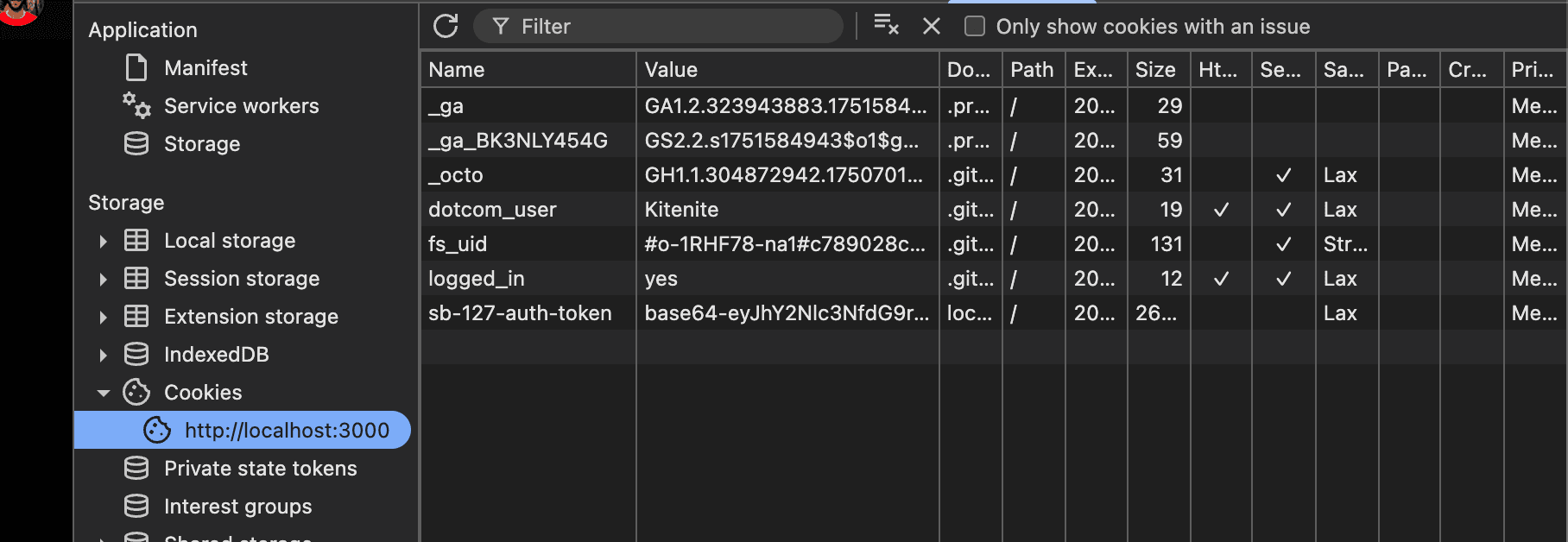
If you encounter issues with reloading pages and being unauthenticated then check your node version, install a more recent version, re-install dependencies and restart the project.
Minimum version v20.16.0 or latest is recommended.
Avoid version v20.11.0 of Node as it has shown this issue in the past.
node --versionYou may have to delete cookies to clear the authentication state.
"Column not found" error
If you encounter issues such as "Column not found" error, your database may be out of sync with the schema. There are 2 things to try to get it back in sync:
- Run
bun db:pushto push the schema to the database. If there are conflicts, you can try step 2. - Run
bun db:resetto fully reset the database and re-run the migrations. WARNING: This will delete all data in the database.
Testing the Preload Script
If you want to update the preload script and test it with Weblab, follow these steps:
- Run bun
bun run devfrom the root of the project. - Copy the file
apps/web/client/public/weblab-preload-script.jsinto topublic/weblab-preload-script.jsin the code tab in Weblab or the codesandbox interface. - Refresh the localhost tab. You should now be able to test the preload script.
If you want to update the preload script and test any changes, you need to refresh the localhost tab.